Using Filo Agent
Filo Agent reads, reasons, and takes action across your email and connected tools.
- Get a morning brief.
- Resolve customer requests.
- Review and merge PRs.
- See only what matters.
Start with Filo Agent.
Main Agent and Threads
Filo Agent is the main Agent in every client. Email push notifications are delivered to this main Agent by default. They are not pushed into Threads that you create yourself.
Threads are separate conversations you can create for work around the same category, project, or topic. A chat opened from an email detail page is also a Thread, so that conversation can stay focused on the source email.
Connections
A Connection lets Agent access an external service within the permissions you approve. Once connected, Agent can read or act on that service only within the authorized scope.
Across clients, open the + menu at the lower-left of the Agent input box to find Connections. On mobile, you can also go to Settings → General → Connections.
Connected email accounts can also enable Push to Agent. After enabling it, new email updates can be pushed into Filo Agent automatically.
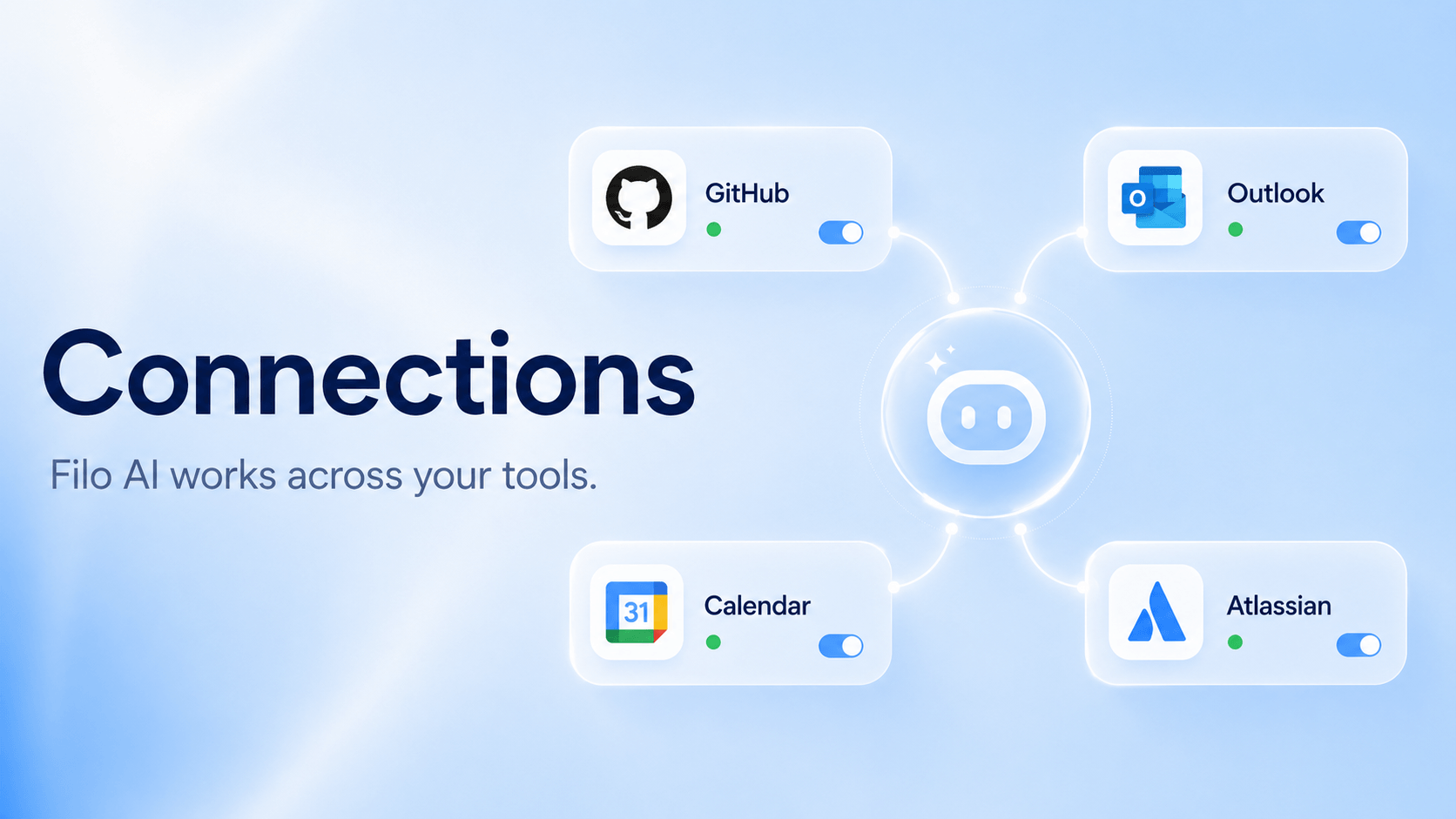
| Connection | What it is for |
|---|---|
| Gmail | Read, draft, and organize Gmail with AI. |
| Microsoft Outlook | Read, draft, and manage Outlook with AI. |
| Atlassian | Turn emails into Jira tasks and Confluence updates. |
| GitHub | Review PRs, file issues, and track releases. |
| Google Calendar | Schedule meetings, check availability, and prep agendas. |
| App Store Connect | Check app status, reviews, and release updates. |
| IMAP | Connect supported IMAP mailboxes such as iCloud Mail, Yahoo Mail, QQ Mail, 163 Mail, 126 Mail, Aliyun Mail, and custom standard IMAP mailboxes. |
| Custom MCP | Bring your own tools, data, and workflows into AI. |
Mail Push and Writing Emails
Across all clients, email push notifications are delivered to the main Agent, Filo Agent, by default. They are not pushed into Threads that you create yourself.
Incoming mail appears in the Agent conversation through Push. Once your mailbox is connected and Push is enabled, Agent can bring in only the information that deserves your attention.
You can also ask Agent to write a new email or draft a reply from the current conversation. Tell it the recipient, goal, tone, and length; Agent prepares the draft, can revise it with you, and asks for confirmation before sending.
Scheduled Tasks
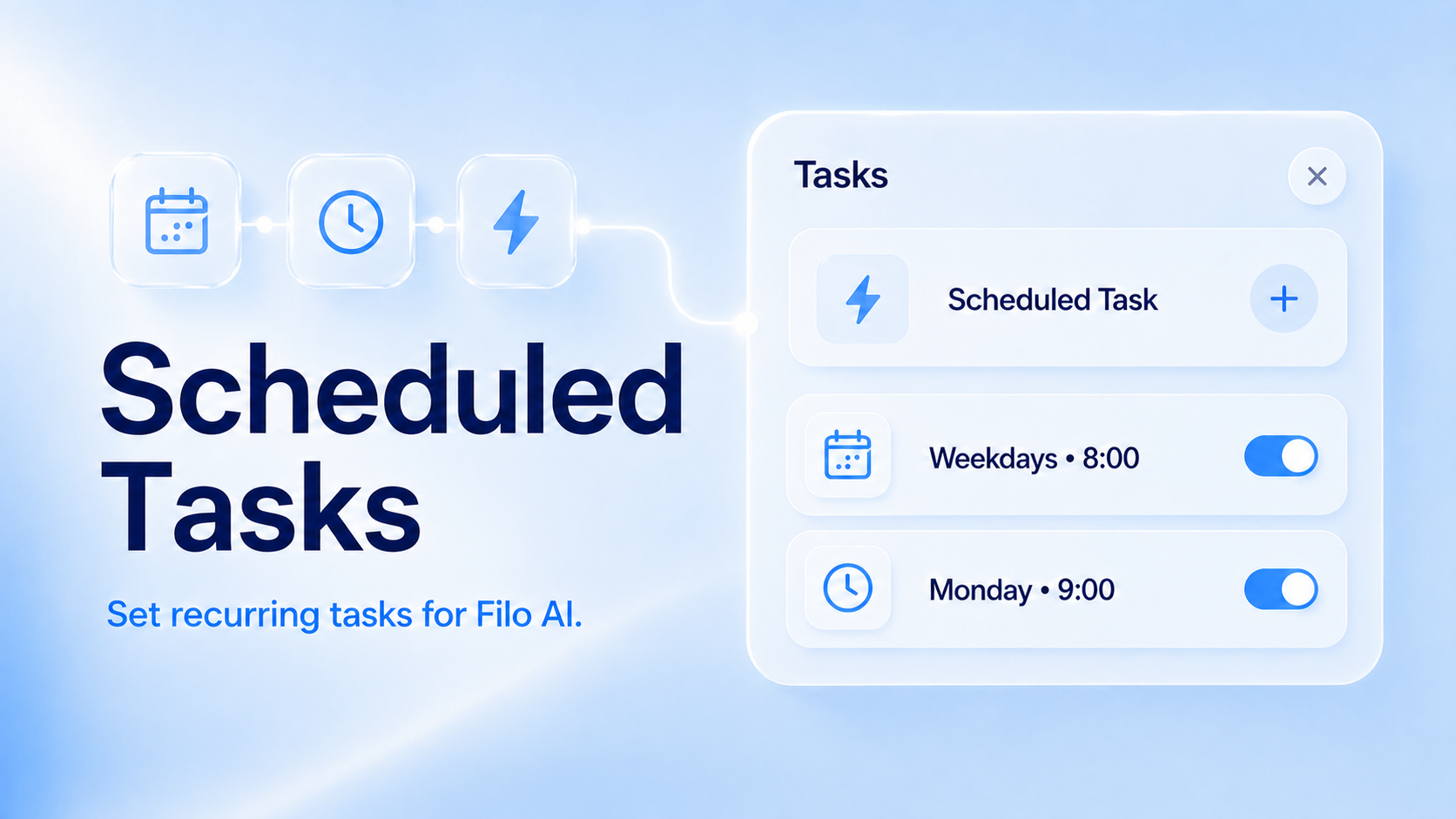
Scheduled Tasks let Agent run automatically. You can use them for scheduled summaries, reminders, cleanup routines, or recurring checks.
We recommend creating Scheduled Tasks by talking with Agent. Describing the goal in conversation helps Agent clarify the timing, scope, and output format, which makes the task execute more accurately.
Set the schedule
When you create a Scheduled Task manually, the Schedule section decides when Agent runs. You can also choose which Model should execute the Scheduled Task.
| Option | When to use it |
|---|---|
| Interval | Run repeatedly, such as every 1 hour. Use it for frequent checks or lightweight monitoring. |
| Daily | Run once per day at a chosen time. Use it for morning briefs, end-of-day summaries, or daily reminders. |
| Cron | Use a custom cron schedule for advanced patterns, such as weekdays only or several fixed times. |
Cron uses 5 fields: minute hour day month weekday. The hour field uses 24-hour time, and Filo Agent's minimum execution interval is 1 hour. Common examples: 0 8 * * * daily at 08:00, 0 * * * * every hour, 0 9 * * 1-5 weekdays at 09:00.
Usage
Usage is split into two main parts: Email-Triage, and Chat plus Scheduled Tasks. Usage has two time windows: weekly and every 5 hours.
Email-Triage covers processing new mail and creating to-dos. Each client now supports viewing the total number of emails processed in the current time window.
Chat and Scheduled Tasks cover Agent conversations and recurring work.
On Desktop, open Usage and click View usage to see detailed token consumption for the last 30 days.
Upload Files
Upload files to let Agent summarize, extract details, or draft messages from the content. Files uploaded into Agent are for analysis; only attachments added to the mail composer are sent with an email.
- "Summarize this PDF."
- "Extract dates, amounts, and contacts from this file."
- "Write a confirmation email based on this document."
Dictate
Dictate helps Agent recognize your voice input more accurately. It turns what you say into clearer text, so the content you send is easier for AI to understand and act on.
Approval and Safety
Agent can take action for you, but key actions ask for confirmation first. Before sending mail, batch-processing mail, creating or modifying Scheduled Tasks, connecting external services, or using tools that may affect another system, you can review the action and decide.