Filo AI
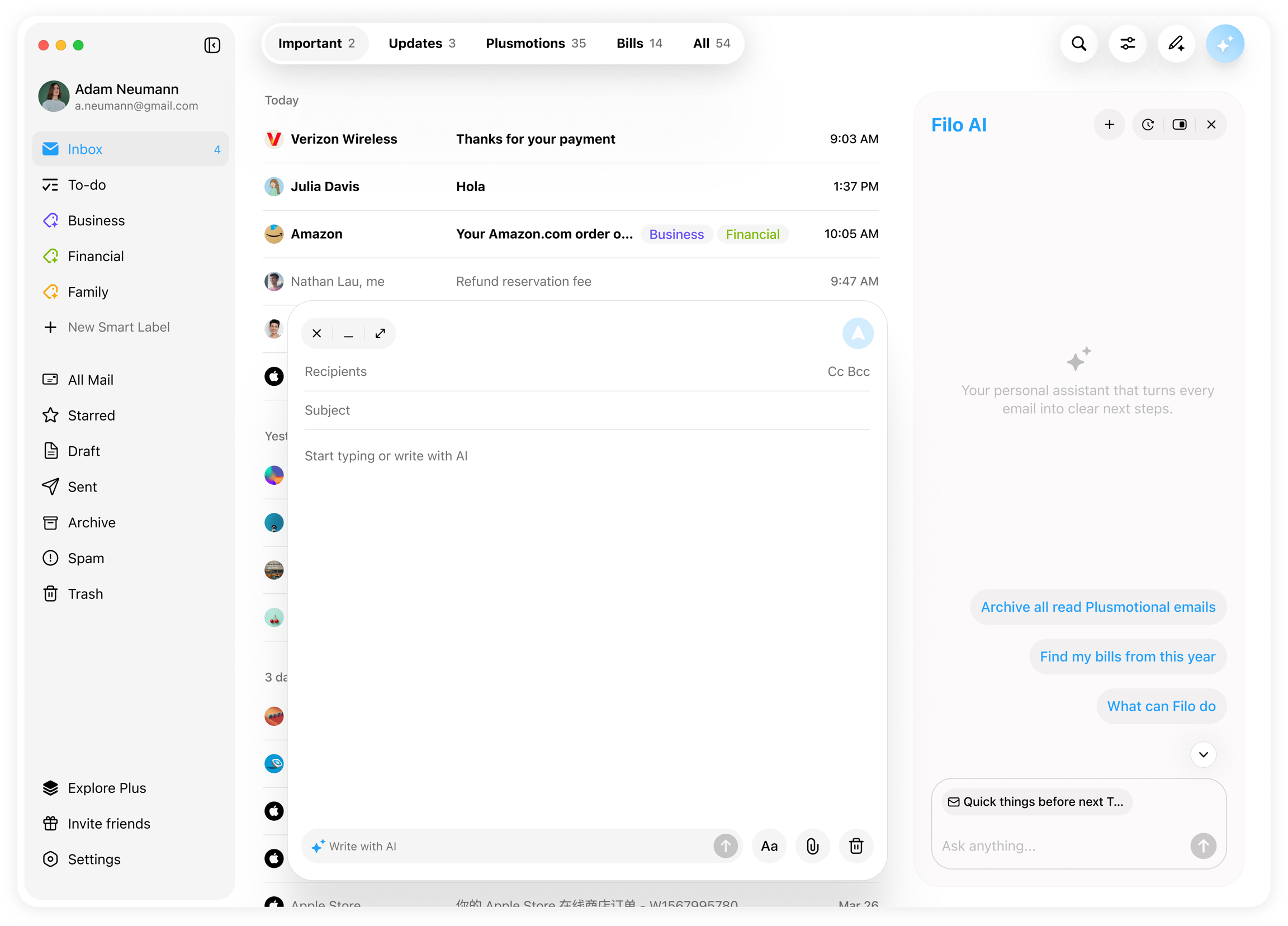
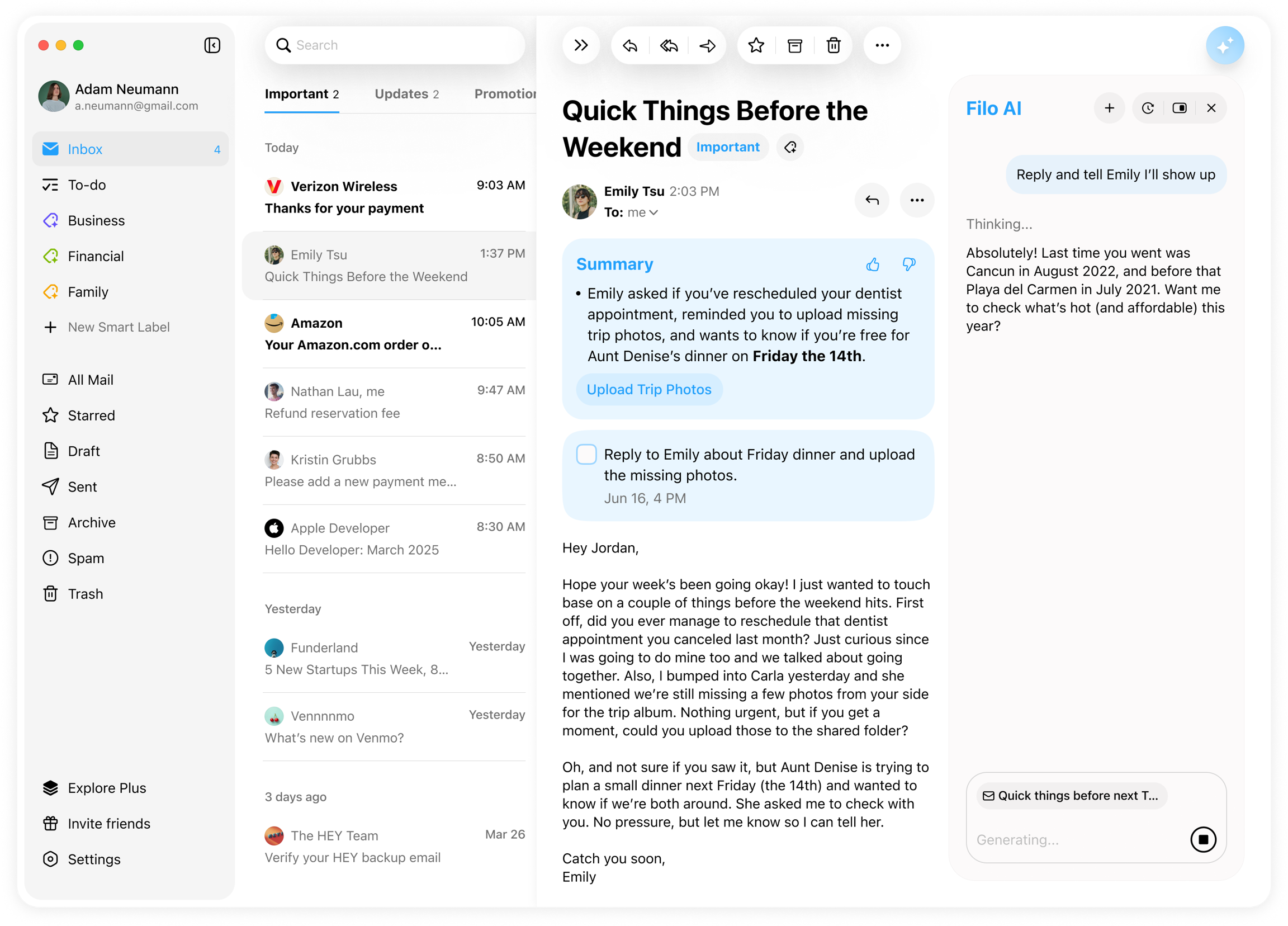
A chat box that lets you tell Filo what to do—no menus, no rules to build. Open it, type a request in plain English, confirm the preview, and the action runs.
| Ask Filo to… | What happens |
|---|---|
| "Delete every email from [email protected]." | Matches the sender, shows the hit-count, moves all to Trash. |
| "Summarize all work emails from this week." | Produces a bullet digest of Important mail dated Monday-today. |
| "Write a weekly report email to my boss." | Drafts a polished status update using this week's work threads. |
| "Find my OpenAI subscription bills from last year and total the spend." | Searches 1 Jan–31 Dec, pulls each invoice, adds up the amounts, returns a total. |
| "List all subscriptions and how much I spent in 2024." | Scans for recurring-payment keywords (invoice, receipt, subscription), groups by vendor, and gives a spend breakdown. |
Open the chat box
- •Desktop: Click the ✧ Filo AI icon (top right).
- •Mobile: Tap Filo AI in the bottom tab.
Confirm before you commit
Bulk actions always show a preview—sender list, date range, or hit-count—so you can check and Confirm or Edit.
Supported actions (v 1.2)
| Category | Examples |
|---|---|
| Organize | Delete · Archive · Mark read/unread · Snooze (by sender, keyword, or date). |
| Search & extract | Locate a single email or a set ("Find the Airbnb confirmation for Paris"). |
| Spend analysis | Aggregate totals for invoices/receipts over any date range. |
| Summarize | Single thread, selection, or date window. |
| Write & reply | Draft replies, new mails, follow-ups, or reports. |
| Custom Labels | Create new labels for batch of certain emails. |
Usage tips
- •Be precise: filters like
from:,subject contains,between 2025-03-01 and 2025-07-31help Filo nail the target set. - •Privacy: Message text is processed on Filo's secure back-end but never retained for model training.
Master the chat box and you'll spend minutes, not hours, keeping your inbox in peak shape.