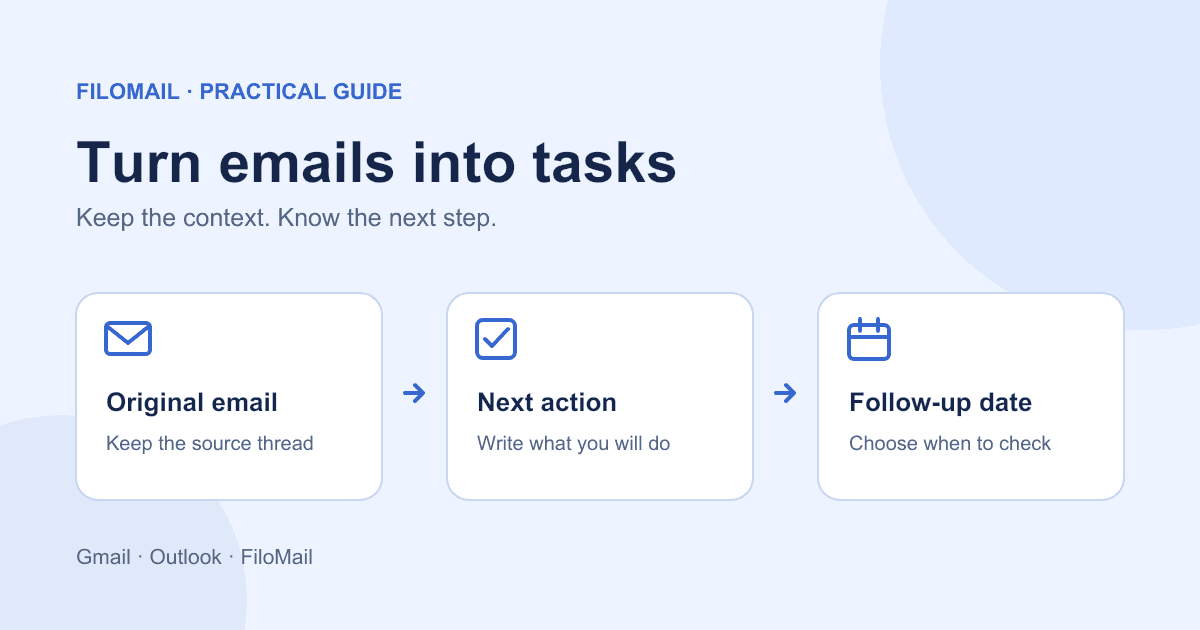
To turn an email into a useful task, write down the next action, keep a way back to the original message, and choose when to act or check again. A task called “Contract” leaves you searching for context. “Review the revised contract before Thursday” tells you what to do.
You can do this manually with Gmail and Google Tasks, Outlook and Microsoft To Do, or FiloMail’s email-linked to-dos. AI is optional for this workflow. Below are the native options, their limits, and a simple review routine you can use with any of them.
First decide whether the email needs a task
An unread message is not automatically a job. Ask: “What do I need to do because of this email?” A newsletter you may read later can stay reference material. A request to review a document needs an action. An answer you are waiting for needs a follow-up check.
Use one task for one next action. Keep background details in the email thread rather than copying the whole conversation into the task title. If a message contains several commitments, split them when they have different owners or deadlines.
| Email context | Useful task title | When to act or check |
|---|---|---|
| A colleague asks for feedback on a draft | Review the launch draft and send comments | Before the requested feedback deadline |
| A supplier asks you to choose a delivery slot | Confirm the delivery slot with the supplier | Before the booking closes |
| You sent a question and need an answer | Check for the supplier’s reply about delivery | A date you choose to review the thread |
These are illustrative examples, not customer messages. A deadline comes from the commitment; a follow-up date is your own reminder to check. Do not turn every message into a task just to make the inbox look organized.
Turn a Gmail email into a Google Task
On a computer, Gmail has a built-in route to Google Tasks:
- Open the email in Gmail.
- Choose Add to Tasks at the top. If it is not visible, open More and choose that option.
- In the Tasks panel, change the title to the action you intend to take.
- Add a date and time when you need to act or review it.
The task is saved in Google Tasks. You can also drag a message from Gmail into the Tasks side panel. See Google’s instructions for creating a task from an email for the current controls.
Before archiving the message, open the task and check that you can return to the source email. Later, read the thread before acting: the request may have changed since you created the task. This is a useful starting point when the work you need to track is already in Gmail.
Turn an Outlook email into a Microsoft To Do task
Outlook’s flags can feed a task list in Microsoft To Do:
- Sign in to Microsoft To Do with the same Microsoft account you use for email.
- Enable the Flagged email list in To Do’s list menu or settings.
- Flag an email in Outlook, then find it in that list.
- Rename the task as a next action and add a due date or reminder as needed.
The task includes email context and an Open in Outlook option. Microsoft documents this for Microsoft-hosted accounts and the primary mailbox; flagged messages in shared mailboxes or shared folders are not supported. When you first enable it, the list imports up to 100 recently flagged emails from the previous 30 days, rather than your entire flag history. Newly flagged messages appear afterward. Check Microsoft’s flagged-email documentation before relying on it for a particular mailbox.
Flags are a capture step. Turning “Budget update” into “Approve the revised budget” is still your decision. Review the conversation before marking the task complete.
Create an email-linked to-do in FiloMail
FiloMail’s to-do documentation describes a manual workflow that keeps the task linked to its email. If your installed version offers this email-detail entry point:
- Open the email that needs action.
- Choose More → Create To-do.
- Rename the task to the next action and set a date or time if useful.
- Save it. The to-do stays linked to the email thread.
Check to-do access in your installed version before relying on this workflow. FiloMail is a free mail client, but that does not guarantee the same task access across platforms and releases. In particular, creating a task through Agent is an AI interaction, even when you type the request yourself.
AI task extraction and other AI features require Filo Plus or prepaid AI credit. The free mail client does not include free AI. See the to-do guide for the documented workflow and current plans and AI credit options for access details.
FiloMail can connect Gmail, Outlook, and IMAP accounts, which may be useful if tasks arrive in more than one inbox. That does not imply that Filo to-dos synchronize with Google Tasks or Microsoft To Do. If you use those lists already, decide which one will hold the next action so you do not maintain duplicate tasks.
Choose the workflow that fits your inbox
| Where your work arrives | A starting point | What to check |
|---|---|---|
| Mostly Gmail | Gmail’s Google Tasks entry point | Task title, date, and access to the original email |
| A Microsoft-hosted Outlook primary mailbox | Flags and Microsoft To Do | Mailbox eligibility and the initial import limits |
| Multiple connected email accounts in FiloMail | Manual email-linked Filo to-dos, where available | Check task access in your installed version; keep AI access separate |
The useful question is whether you can find the task, understand it, and reopen its source when needed. There is no need to change clients just to start naming your next actions more clearly.
Keep the list useful after capture
Choose a regular review time that fits your workday. Start with tasks due today and items waiting for a reply. For each one, reopen the email and decide whether to act, change the next check date, or complete the task.
For a waiting item, the action is “check the thread,” not an automatic promise to send a follow-up. If the answer has arrived, decide what it changes. If it has not, write a follow-up only when appropriate. Receiving a reply does not necessarily finish the underlying work.
Archive a message when you are comfortable finding it again through the task or search. Mark the task done when you have completed the action, not merely because you opened the email. If the list keeps growing, reduce it to commitments you actually intend to review. Our guide to managing email overload covers the broader inbox routine.
FAQ
Can I turn an email into a task without AI?
Yes. Gmail’s task control and Outlook flags with Microsoft To Do let you capture work yourself. FiloMail also documents a manual email-detail to-do workflow; check its availability in your installed version. You still decide the next action and follow-up date.
Are FiloMail’s email tasks free?
The mail client is free, but check manual to-do access in your installed version rather than assuming all task creation is included. Agent requests are AI interactions. AI task extraction requires Plus or prepaid AI credit.
Should I use the email subject as the task title?
Only if it already describes an action. “Invoice” is context; “Check the invoice and approve payment” is a next step. Keep the email link for the details.
What if I am waiting for someone else?
Create a task to check the conversation on a date you choose. Review the latest messages before deciding whether to follow up, reschedule, or close it.
Try it with one real email
Pick one message that needs a next step. Name the action, keep the source, and choose a date. If you want to try the FiloMail workflow, download the free mail client and follow the account connection guide. Check the manual to-do entry point in your installed version; review the paid AI options separately if you need them.
For the product idea behind this workflow, read To-dos Hiding in Your Inbox.


